

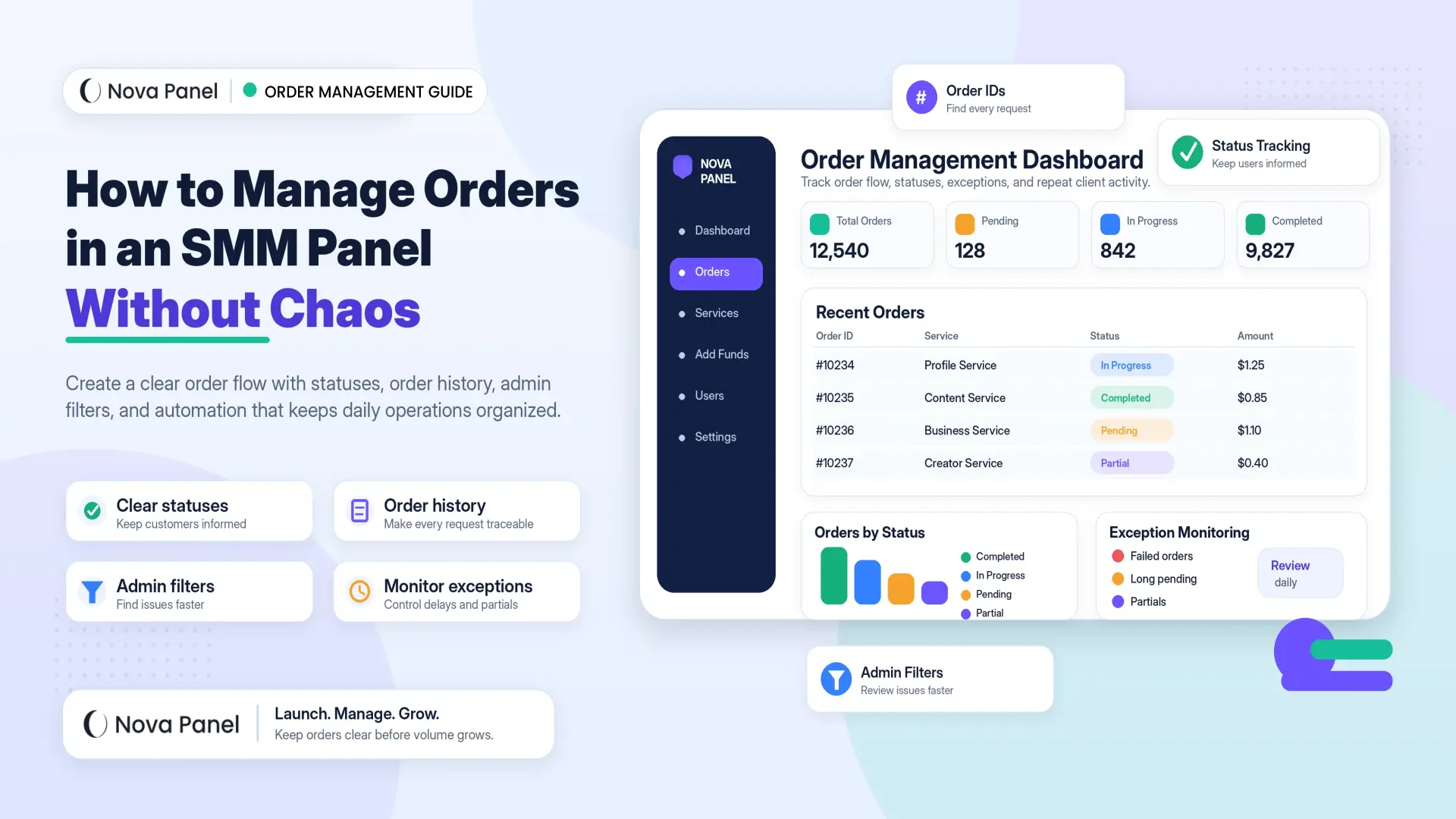
How to Manage Orders in an SMM Panel Without Chaos
Order management is one of the most important parts of running an SMM panel.
At the beginning, managing orders may look simple. A few customers place a few orders, and the owner can check everything manually.
But as the business grows, order management can quickly become chaotic.
Orders may get lost.
Customers may ask for updates again and again.
Statuses may be unclear.
Support tickets may increase.
Payments and balance deductions may become harder to track.
The owner may spend too much time checking details manually.
A successful SMM panel needs more than a service catalog and payment flow. It needs a clear order management system.
In this guide, we will explain how to manage SMM panel orders without chaos, what order statuses to use, how to reduce support questions, how to handle partial or canceled orders, and how Nova Panel helps create a more organized workflow.
Why Order Management Matters in an SMM Panel
An SMM panel is built around orders.
A customer signs up, adds funds, chooses a service, submits details, and waits for the order to be processed.
If the order experience is smooth, the customer feels confident.
If the order experience is confusing, the customer may lose trust.
Order management affects:
- customer experience
- support workload
- repeat purchases
- service quality control
- refund and partial handling
- operational efficiency
- business scalability
- trust in the platform.
A customer does not only care that the order was placed.
They also care about what happens after that.
They want to know:
- Was my order received?
- What is the current status?
- Is anything wrong?
- When should I contact support?
- What happens if the order is partial or canceled?
- Where can I see my order history?
A strong order management system answers these questions clearly.
A weak one creates confusion.
What Is SMM Panel Order Management?
SMM panel order management is the process of receiving, tracking, updating, and organizing customer orders inside the platform.
It usually includes:
- order submission
- order validation
- balance deduction
- order status tracking
- order history
- provider or internal processing
- error handling
- partial and canceled order handling
- customer support workflow
- reporting and analytics.
In simple words, order management is the system that keeps every customer request organized from the moment it is placed until it is completed, canceled, partial, refunded, or resolved.
Without order management, the business depends on memory, messages, spreadsheets, and manual checking.
That may work at the very beginning, but it does not scale well.
A proper order workflow helps the owner manage more customers without losing control.
Why Orders Become Chaotic
Order chaos usually does not happen because of one big problem.
It happens because many small problems build up over time.
Common reasons include:
- unclear service rules
- missing order instructions
- no consistent order statuses
- manual processing
- poor order search
- no order history
- no customer-facing updates
- unclear refund or partial rules
- weak support workflow
- too many services added too early
- no monitoring of delayed or failed orders.
For example, if customers do not understand what information to submit, they may place incorrect orders.
If statuses are unclear, they will ask support for updates.
If order IDs are missing or hard to find, support becomes slower.
If partial rules are not explained, customers may become frustrated.
The goal of good order management is to prevent these problems before they become support tickets.
The Standard SMM Panel Order Flow
A clear order flow makes the platform easier to use.
A standard SMM panel order process usually looks like this:
- The customer logs in.
- The customer adds funds to their balance.
- The customer chooses a service.
- The customer enters the required details.
- The customer checks the price and quantity.
- The customer submits the order.
- The cost is deducted from the balance.
- The order appears in order history.
- The order status is updated over time.
- The customer tracks progress from the dashboard.
This process should feel simple for the customer.
Behind the scenes, the panel may handle validation, routing, automation, provider communication, status updates, and admin review.
The customer does not need to understand all technical details.
They need a clear and predictable experience.
Step 1: Create a Clear Order Workflow Before Launch
Before launching your SMM panel, define how orders should move through the system.
Do not wait until customers start placing orders to figure it out.
Ask:
- What happens when a customer submits an order?
- When is the balance deducted?
- What information is required?
- What happens if the input is wrong?
- What status appears first?
- Who reviews failed orders?
- How are partial orders handled?
- How are canceled orders handled?
- What does the customer see?
- What does the admin see?
A clear workflow helps prevent confusion.
It also makes it easier to write service descriptions, create FAQ answers, prepare support scripts, and organize admin operations.
If the workflow is unclear internally, it will feel unclear to customers too.
Good order management starts before the first order is placed.
Step 2: Use Clear Service Rules
Many order problems begin before the customer clicks the submit button.
If the service rules are unclear, customers may enter the wrong information or misunderstand what they are ordering.
Each service should clearly explain:
- what the service is
- what information the customer must provide
- accepted input format
- minimum order quantity
- maximum order quantity
- important restrictions
- whether the content or profile must be public
- whether changes are allowed after submission
- what happens if the order is partial
- what happens if the order is canceled.
The clearer the rules, the fewer failed or incorrect orders you will have.
Avoid vague descriptions such as:
“Best quality service.”
That does not help the customer.
Use simple, practical descriptions that explain what the user needs to know before ordering.
A clear catalog creates cleaner orders.
Step 3: Collect the Right Information Before Submission
A good order form should collect the exact information needed to process the order.
If the form asks for too little, orders may fail.
If the form asks for too much, customers may get confused.
The goal is balance.
For each service, define the required fields carefully.
Common order fields may include:
- service selection
- link or target input
- quantity
- additional notes, if needed
- final price
- confirmation button.
The input field should also explain what format is expected.
For example:
- “Enter the full link.”
- “Make sure the target page is accessible.”
- “Check the quantity before submitting.”
- “Orders cannot always be changed after submission.”
Clear input instructions reduce mistakes.
A good order form should help the customer place the correct order the first time.
Step 4: Show the Final Price Before Order Submission
The customer should always see the final cost before submitting the order.
This is especially important in an SMM panel because the cost is usually deducted from account balance.
Before the order is placed, the panel should show:
- selected service
- quantity
- price per unit, if relevant
- total order cost
- current balance
- balance after order, if possible.
This prevents surprises.
For example:
- Current balance: $50.00
- Order cost: $7.50
- Balance after order: $42.50
When customers clearly understand the balance deduction, they are less likely to contact support with payment questions.
Transparent pricing and balance deduction make the order process feel more professional.
Step 5: Use Simple and Consistent Order Statuses
Order statuses are one of the most important parts of SMM panel order management.
Customers want to know what is happening after they place an order.
Common statuses may include:
- Pending
- In Progress
- Completed
- Partial
- Canceled
- Failed
- Refunded.
The exact status list depends on your platform and workflow, but the important thing is consistency.
Do not use different status names for the same situation.
Do not show confusing technical messages to customers.
Do not leave orders without updates for too long.
A simple status system helps customers understand the process.
It also reduces support questions.
Common SMM Panel Order Statuses Explained
Here are common statuses and what they usually mean.
Pending
The order was created and is waiting to be processed.
This is often the first status after submission.
A customer-friendly explanation could be:
“Your order has been received and is waiting to start.”
In Progress
The order is currently being processed.
This tells the customer that the order is active.
A customer-friendly explanation could be:
“Your order is currently being processed.”
Completed
The order has finished successfully according to the platform or provider status.
This is the status customers expect to see when the process is done.
A customer-friendly explanation could be:
“Your order has been completed.”
Partial
Only part of the order was completed.
This status needs clear rules because customers may not understand what it means.
A customer-friendly explanation could be:
“Part of your order was completed. The remaining amount may be credited according to the platform rules.”
If partial orders are possible, explain how balance credits or adjustments work.
Canceled
The order was canceled before completion.
This may happen because of incorrect input, unavailable service, failed processing, or other rules.
A customer-friendly explanation could be:
“This order was canceled. Please check the details or contact support if needed.”
Failed
The order could not be processed.
This status should be handled carefully.
The customer should not see raw technical errors. Instead, they should see a simple message and a support option if needed.
Refunded
The order amount, or part of it, was returned according to the platform’s rules.
Refunds may go back to the customer’s account balance, depending on the business policy.
Rules should be clear in the FAQ or Terms of Service.
Step 6: Separate Customer-Facing Statuses From Admin Details
Customers need simple order statuses.
Admins need more detail.
This is an important difference.
A customer may only need to see:
- Pending
- In Progress
- Completed
- Partial
- Canceled.
But an admin may need to see:
- provider order ID
- internal notes
- API response
- error reason
- balance adjustment
- service route
- retry attempts
- timestamps
- support history.
Do not show technical details to customers unless they are necessary.
Raw errors can confuse users and make the panel look unprofessional.
A good system keeps the customer experience simple while giving the admin enough information to troubleshoot problems.
Step 7: Use Order IDs for Support
Every order should have a unique order ID.
This makes support much easier.
Without order IDs, support conversations become messy.
A customer may say:
“My order is not working.”
But which order?
With an order ID, the support team can quickly find the exact request.
A good support workflow should ask customers to include:
- order ID
- account email or username, if needed
- short description of the issue
- screenshot or details, if relevant.
Order IDs help reduce confusion and speed up support responses.
They also create a clearer record for both the customer and the owner.
Step 8: Make Order History Easy to Find
Customers should be able to view their past orders inside the dashboard.
Order history helps users track activity and reduces repetitive questions.
A useful order history page may include:
- order ID
- date
- service name
- quantity
- total cost
- status
- last update
- action buttons, if needed.
For repeat customers and resellers, order history is especially important.
They may manage many orders over time and need a clean way to review them.
If order history is hard to find, users will contact support more often.
A visible order history gives customers more control.
Step 9: Use Search and Filters in the Admin Area
As order volume grows, the admin area needs strong search and filtering.
Without filters, managing many orders becomes difficult.
Useful filters may include:
- order ID
- customer
- service
- category
- status
- date range
- payment or balance activity
- provider, if relevant
- failed or delayed orders.
Admins should be able to quickly find:
- all pending orders
- all failed orders
- all partial orders
- all orders from one user
- all orders from a specific date
- all orders for a specific service.
Good filters save time.
They also help the owner spot patterns.
For example, if one service creates many failed orders, the service may need review.
If one customer creates many support issues, their workflow may need guidance.
Order filters help turn chaos into manageable information.
Step 10: Automate Routine Order Updates
Automation can reduce manual work.
For SMM panels, automation may help with:
- sending orders
- updating statuses
- checking progress
- notifying users
- detecting failed orders
- syncing order data
- reducing repeated manual actions.
Automation is especially useful when order volume increases.
Without automation, the owner may spend hours copying order details, checking statuses, and answering the same questions.
However, automation should be used responsibly.
It should not mean ignoring the system.
The best approach is:
automate routine actions and monitor exceptions.
This means the system handles repetitive work, while the owner pays attention to failed, delayed, partial, or unusual orders.
Automation should create control, not blind spots.
Step 11: Monitor Failed, Delayed, and Partial Orders
Not every order will go perfectly.
Some orders may fail, delay, or complete partially.
A good order management process should monitor these cases carefully.
Watch for:
- failed orders
- long pending orders
- long in-progress orders
- repeated partials
- frequent cancellations
- customer complaints
- services with many support tickets
- provider or processing issues
- unusual order patterns.
These exceptions often show where the business needs improvement.
For example:
If many orders fail because of wrong input, improve service instructions.
If one service has many partials, review whether it should remain in the catalog.
If customers ask the same status question repeatedly, improve status explanations.
If orders stay pending too long, review the processing workflow.
Exception monitoring helps you improve the business over time.
Step 12: Create Clear Rules for Partials and Cancellations
Partial and canceled orders can create confusion if the rules are not clear.
Customers need to know what happens when an order does not complete fully.
Your platform should explain:
- when an order can become partial
- how partial amount is calculated
- whether balance credit is issued
- when an order can be canceled
- whether the user needs to reorder
- how support should be contacted
- whether changes are allowed after submission.
Do not wait until a dispute happens to explain the rules.
Put the rules in:
- FAQ
- Terms of Service
- service descriptions
- order page notes
- support documentation.
Clear rules protect both the customer and the business.
They reduce misunderstandings and help support respond consistently.
Step 13: Connect Support to the Order Workflow
Support should be connected to order management.
If support is separate from the order system, it becomes harder to solve problems.
A good support process should allow the team to quickly see:
- customer account
- order ID
- order status
- service name
- order date
- balance deduction
- status updates
- previous support messages
- admin notes, if relevant.
This helps support respond faster and more accurately.
It also prevents customers from repeating the same information multiple times.
Support should not feel like a separate process.
It should be part of the order experience.
Step 14: Track Order Management Metrics
To improve order management, track the right metrics.
Important order metrics may include:
- total orders
- completed orders
- pending orders
- failed orders
- partial orders
- canceled orders
- average processing time
- most ordered services
- services with most issues
- repeat order rate
- support tickets per order
- refund or credit frequency
- customer complaints by category.
These numbers help you understand where problems are happening.
For example:
If support tickets per order are high, descriptions may be unclear.
If many orders are canceled, input rules may need improvement.
If processing time is slow for one category, that category may need review.
If repeat order rate is strong, the customer experience may be working well.
A successful panel improves based on real order data, not guesswork.
Step 15: Keep the Service Catalog Clean
Order management is connected to service catalog quality.
A messy catalog creates messy orders.
If your catalog has too many unclear services, duplicate options, outdated services, or weak descriptions, order problems will increase.
Review your catalog regularly.
Remove services that:
- create too many failed orders
- receive too many complaints
- have unclear rules
- are rarely ordered
- have weak margins
- cause repeated support issues
- no longer fit your target audience.
A smaller, cleaner catalog is often better than a large catalog full of problems.
Good order management starts with good service organization.
Manual Order Management vs Automated Order Management
Some panel owners start manually.
That can work at the beginning.
But manual order management becomes harder as the business grows.
| Factor | Manual Order Management | Automated Order Management |
|---|---|---|
| Setup complexity | Lower | Higher initial setup |
| Daily workload | High | Lower for routine tasks |
| Human error risk | Higher | Lower when configured correctly |
| Order speed | Depends on manual work | More consistent |
| Status updates | Manual | Automated or semi-automated |
| Scaling potential | Limited | Better for growing panels |
| Support pressure | Often higher | Usually lower with clear statuses |
| Best for | Very small testing stage | Growing panels and repeat orders |
Manual management gives direct control at first, but it is not a long-term solution for a growing panel.
Automation helps reduce repetitive work, but it still needs monitoring.
The best system combines automation with clear admin oversight.
Common Order Management Mistakes
Mistake 1: No Clear Order Statuses
If customers do not understand order progress, they will contact support.
Use simple and consistent statuses.
Mistake 2: No Order ID System
Without order IDs, support becomes slow and confusing.
Every order should be easy to identify.
Mistake 3: Weak Service Instructions
Unclear service rules lead to incorrect orders.
Write better descriptions and input instructions.
Mistake 4: Showing Technical Errors to Customers
Customers should not see raw system errors.
Show simple messages and keep technical details for admins.
Mistake 5: Ignoring Partial and Canceled Order Rules
Partials and cancellations need clear rules.
Explain them before customers ask.
Mistake 6: Managing Everything Manually Too Long
Manual work becomes a bottleneck.
Use automation where it makes sense, especially for routine tasks.
Mistake 7: Not Monitoring Problem Services
Some services create more issues than they are worth.
Track complaints, failures, partials, and support load.
Mistake 8: No Admin Filters or Search
Without search and filters, large order lists become chaotic.
Admins need quick ways to find important orders.
How Nova Panel Helps You Manage Orders More Clearly
Nova Panel is designed to help entrepreneurs launch and manage an SMM panel without building the full system from scratch.
Order management is one of the core parts of a strong SMM panel business.
A panel needs structure for:
- customer dashboard
- service catalog
- order management
- balance top-ups
- payment flow
- user accounts
- account settings.
Nova Panel helps provide this foundation, so panel owners can focus more on business growth, customer experience, service quality, and support instead of trying to build every technical layer manually.
A clear order workflow helps customers understand what happens after they place an order.
It also helps owners reduce confusion, organize support, monitor order activity, and improve the panel over time.
Nova Panel gives you the tools to launch and manage your own SMM panel without building everything from scratch.
Final Thoughts
Order management can make or break the SMM panel experience.
A customer may forgive a small delay if the status is clear and support is helpful.
But if the order disappears, the status is confusing, and no one can explain what happened, trust disappears quickly.
To manage SMM panel orders without chaos, you need:
- clear service rules
- simple order forms
- visible final prices
- consistent order statuses
- order IDs
- easy order history
- admin filters
- automation for routine work
- monitoring for exceptions
- clear partial and cancellation rules
- support connected to order data
- regular service catalog review.
The goal is not only to process orders.
The goal is to create an order experience that customers can understand, trust, and use again.
Nova Panel gives you the tools to manage orders, services, balance top-ups, users, and payment flow without building everything from scratch.
FAQ
What is SMM panel order management?
SMM panel order management is the process of receiving, tracking, updating, and organizing customer orders inside the platform from submission to completion, cancellation, partial completion, or refund.
Why do SMM panel orders become chaotic?
Orders become chaotic when service rules are unclear, statuses are inconsistent, support is disconnected from order data, and too much work is handled manually for too long.
What order statuses should an SMM panel use?
Common order statuses include Pending, In Progress, Completed, Partial, Canceled, Failed, and Refunded. The exact statuses depend on your workflow, but they should be simple and consistent.
Why are order IDs important?
Order IDs make support easier. They help the customer and support team identify the exact order, review its status, and solve issues faster.
Should SMM panel order management be automated?
Automation is useful for routine order processing, status updates, and reducing manual work. However, automation should still be monitored, especially for failed, delayed, partial, or unusual orders.
How can I reduce support questions about orders?
Use clear service descriptions, simple order forms, visible final prices, consistent statuses, order history, FAQ answers, and customer-friendly messages for partial, canceled, or failed orders.
How can Nova Panel help with order management?
Nova Panel gives you the structure to manage orders, services, balance top-ups, payment flow, users, customer dashboard, and account settings from one organized platform.